An animated stream background loop: a calm backdrop for your live show
Design a still with room for the camera and chat, add slow motion that never steals the show, hide the loop point and export a backdrop that plays for hours.
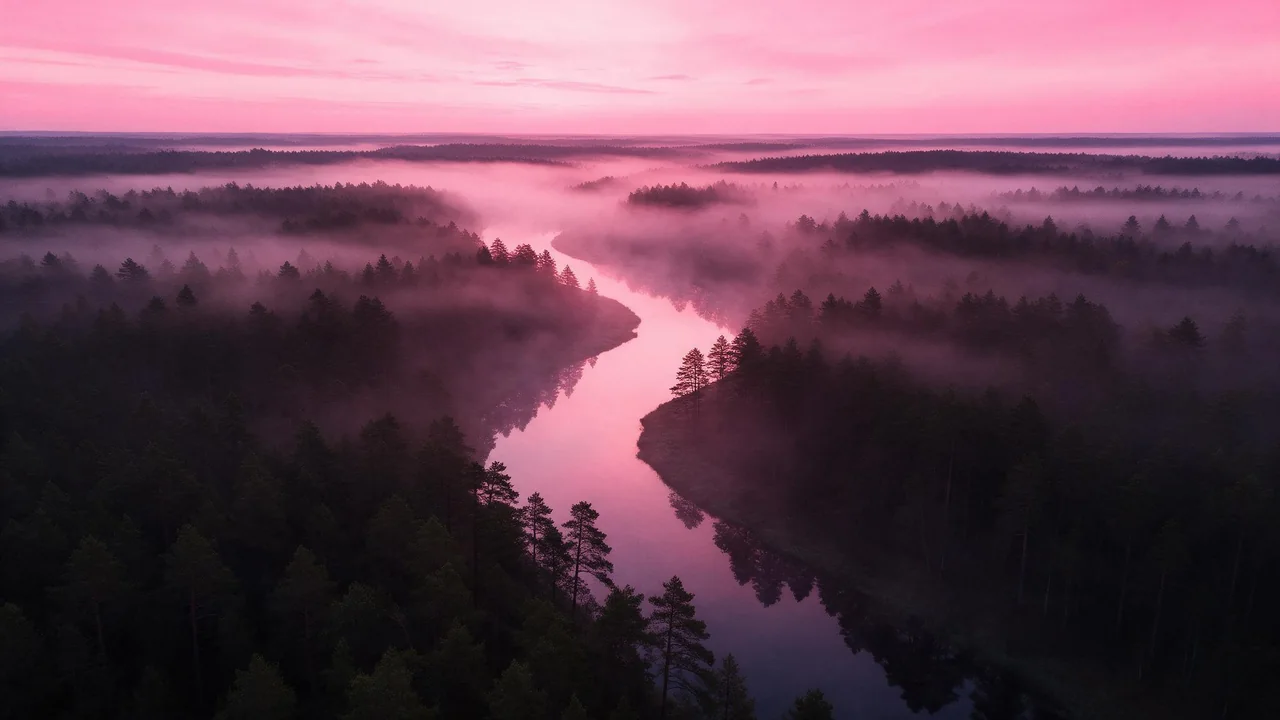
A backdrop for a live show has a strange job description. It plays behind you for two or three hours, it sits under a camera box, a chat column and a few alerts, and the best compliment it can get is that nobody mentions it. Most animated backgrounds fail that test in the first ten minutes: something blinks, something swoops, and viewers watch the wallpaper instead of the person.
This guide builds one backdrop for a cozy evening stream on Twitch or YouTube live, from an empty canvas to a clip your streaming software repeats all night. The order matters: plan the layout, make a still, add a little motion, then deal with the seam.
Start with the overlay map, not the art
Before you write a prompt, take a screenshot of your current scene with every overlay switched on and trace the boxes. Where does the camera sit? Where does chat run? Where do follower alerts pop? Those areas will be covered for the whole show, so the picture behind them does not need detail. It needs calm.
- Covered zones. Under the camera and the chat column, ask for soft, low-detail areas: a dim wall, out-of-focus light, gentle haze. Detail there is wasted and peeks out around the edges.
- The open zone. Whatever stays visible, usually the middle and one top corner, is where the interesting part of the picture goes.
- Text zones. Chat and alerts are light text on a dark panel, or the reverse. Keep the background behind them in one value range, so the panel never has to fight a bright spot.
Render the still in the stream's shape
Your canvas is wide, so render wide. P-Image offers 16:9 and is cheap enough to try a handful of layouts. Describe where the quiet areas are in plain words; models follow left, right, top and bottom better than percentages.
A cozy night study seen from a desk, a large window on the right with a soft city glow, a dim plain wall in the lower left corner, warm lamp light in the center, a few floating dust motes in the light, muted plum and amber palette, low contrast, gentle blur on everything far away, wide shot, no people, no text, no screensPick the frame where the open zone looks good with a rectangle pasted over the covered zones. A quick way to check: drop the still into your streaming scene with all overlays on and squint. If your eye lands on the background before your face, the still is too loud. Ask for lower contrast or more blur and render again; that is cheaper than fixing it after animation.
Choose motion that can run for hours
A header is seen for a few seconds. A stream backdrop is seen for an evening, so any motion with a clear event in it, a bird crossing, a light switching on, will be noticed every single time it repeats. Good backdrop motion has no events, only drift:
- Particles. Dust in a light beam, slow snow, embers, bubbles. Many small things moving the same way read as texture, not action.
- Slow light. A lamp glow that breathes a little, clouds dimming a window, a sweep of light across a wall.
- Gentle parallax. A tiny sideways camera drift, so near and far things slide past each other. Keep it barely visible; anything you can name as a camera move is too much.
Open the still in P-Video-2. It uses your picture as the first frame and keeps its shape, so a wide still gives a wide clip. Turn on draft mode in the advanced settings while you search for the right motion; it is a faster preview at a lower per-second rate.
Dust motes drift slowly upward through the lamp light, the city glow in the window dims and brightens very softly, the camera stays completely still, the walls, desk and window frame do not move, no new objects appearHide the jump where the clip restarts
The clip has a start and an end, and your software will jump from one to the other dozens of times a night. Three ways to make that jump disappear, from least to most work:
- Same picture at both ends. P-Video-2 Pro takes an optional last-frame image. Give it your still for both the first and the last frame, and say in the prompt that the motion settles back to where it began.
- A hard look at the frames. Export the first and last frame as pictures and flip between them. Particles may land in different places, which is fine; a lamp at a different brightness is not, because the whole frame will pulse at the loop point.
- A short blend in your editor. Overlap the last second of the clip with the first and dissolve between them. For drifting particles and soft light this hides almost any seam.
Particles are your friend here. If the only things moving are small, many and similar, a viewer cannot tell which dust mote went where, and a mismatch reads as more dust.
Export with the stream in mind
Your stream is compressed live, and an encoder hates fine motion everywhere at once: flickering grain, rain and fast sparkles turn into blocks the moment your game gets busy too. Fewer, larger, slower particles survive compression far better than a blizzard of tiny ones.
- Resolution. Render the final at the model's highest resolution option once the motion is settled in drafts. If your canvas is bigger than the clip, a video upscaler can raise the size of the finished file; softness in a backdrop is forgiving, so upscaling usually looks fine.
- Sound off. Saving audio is on by default in the advanced settings. Switch it off, or mute the source in your streaming software, so no hum restarts every few seconds under your voice.
- Keep the still too. The first frame makes a perfect static version for your starting soon and break scenes, and it matches the moving one exactly.
Common failures and the fix for each
- The whole room wobbles. The model moved the architecture. Add the walls, desk and window to the list of things that do not move, and try a shorter clip.
- Something walks into frame. A cat, a car, a person in the window. Add "no new objects appear" and remove any word that suggests life outside.
- A flash at the loop point. Brightness differs between the ends. Use the same still as the last frame, or blend the ends in your editor.
- Detail creeps into the camera corner. Tell an edit model such as P-Image Edit to simplify that corner of the still, then animate the cleaned version.
- It looks great and nobody can read chat. Lower the contrast of the still, darken the chat side, or give your chat panel a solid background.
What the studio cannot do for you
It renders a short clip, not an evening of footage, so the repeat is always yours to handle; nothing in the studio makes a clip seamless on its own. It does not know your overlay layout, it cannot render particles on a transparent layer to stack over a separate still, and it does not set up the looping source in your streaming software. A last-frame image makes the ends similar, not identical, so keep the editor blend in reserve.
If you already make short loops for social posts, the Friday loop series covers the ping-pong trick for vertical clips; a backdrop is the same idea stretched over a whole evening. For the wide frame shape and its cousins, see seven social-ready image formats. Every video model and its options are on the models page, and the studio is where the first still gets made.
Questions
How long should a stream background loop be?
Short enough to stay calm and cheap, long enough that the repeat is not obvious. Ambient particles and soft light hide the repeat well, so a short clip is usually plenty; length matters less than having no events in it.
Should the backdrop move at all?
A little. Very slow motion makes a scene feel alive without stealing attention. If you catch yourself watching it during a stream, it moves too much.
Can I use the still for my break screen?
Yes. The first frame of the loop is a ready static version, and because it is the same picture, switching between the break scene and the live scene feels seamless.